Calculated UDC
Use the ServiceMon Calculated UDC Definition dialog box to create UDCs for calculated SVCMON points.
|
ServiceMon Calculated UDC Definition |
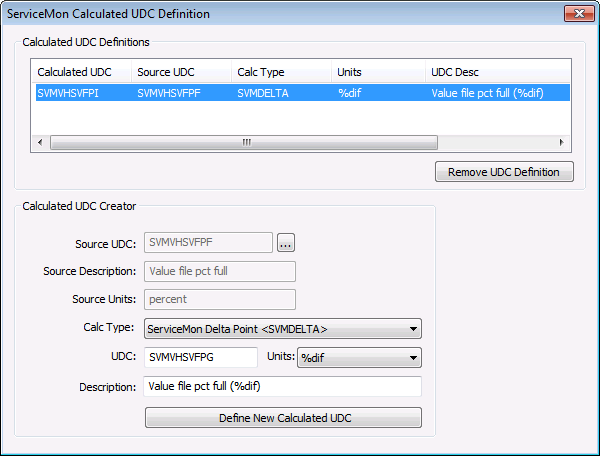
When you create a calculated UDC, the system also creates a point template for the item. Just as with SVCMON points that monitor info items, the point template can be used to define and apply default properties to all SVCMON tag that use the UDC on which the template is based.
To Define a Calculated UDC
- In the Calculated Points view, click Define New Calculated UDCs to show the ServiceMon Calculated UDC Definition dialog box.
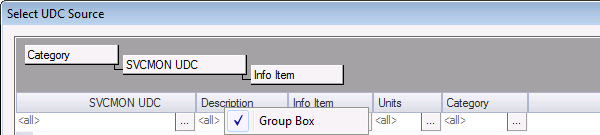
- In the Calculated UDC Creator section, click … to select the Source UDC from the Select UDC Source dialog box. The Select UDC Source dialog box consists of a data grid of SVCMON UDCs grouped by category. You can filter and/or group UDCs in this dialog box using the filtering row in the data grid and an optionally displayed custom grouping hierarchy.
- Click to select the desired column text box, then type the desired filter; or click … to view the Filter Column by Text dialog box. For the Units column, you can filter by units; for the Category column, you can filter by type. The default filter for all columns is <all>.
- Additionally you can group UDCs by any of the column headings to further sort the data view.
- Right-click on any column heading to display/hide the Group Box.
- Select Group Box to display a row above the column headers in which to organize the group filtering hierarchy you configure. Note that this row is displayed by default.
- Column headings can be dragged from the column header row to the group box in order to create the grouping hierarchy. To change the grouping hierarchy, drag any component out of the group box or to a new position within it. Red positional arrows appear to guide placement of the new grouping element.
|
Group Box |
- Click OK once you have found the source UDC. The Source UDC, Description and Units will populate automatically in those text boxes.
- Select the Calc Type from the drop-down menu.
- A new UDC will be generated based on the source UDC and the Units. You can customize the UDC if desired.
- Select the Units from the drop-down menu.
- In the Description box, type or modify the description for the new UDC.
- Click Define New Calculated UDC. The new UDC will be added to the Calculated UDC Definitions box above.
- Repeat the process to add more UDCs. The new UDC(s) will be added to the Table Reference Service (~UDCCALC table) and the associated point template added to the Point Service.
- Click Done.
- Click the Explore view icon to view the point template.
To Remove a Calculated UDC
- In the Calculated Points view, click Define New Calculated UDCs to show the ServiceMon Calculated UDC Definition dialog box.
- In the Calculated UDC Creator section, click … to select the Source UDC from the Select UDC Source dialog box. Any UDCs based on the type will be shown in the Calculated UDC Definitions box.
- Select the UDC to delete and click Remove UDC Definition. The point template for the UDC will not be deleted. If you re-add the UDC you will be prompted to keep or overwrite the existing template.


